Tutorial 8 of 11
Time each animation layer with Xsheet Desk
Intermediate 8 min
Reuse drawings through independent layer exposures, holds, blanks and cycles, then export an animation or editable drawing project.
Open Xsheet Desk from Flipline's rail, or visit /app#xsheet. Start with Paper bird, Signal station, A small tide or Garden pulse. Use drawing board copies the current drawing project into a new sheet. A standard .flipline.json file can also be opened as a source.
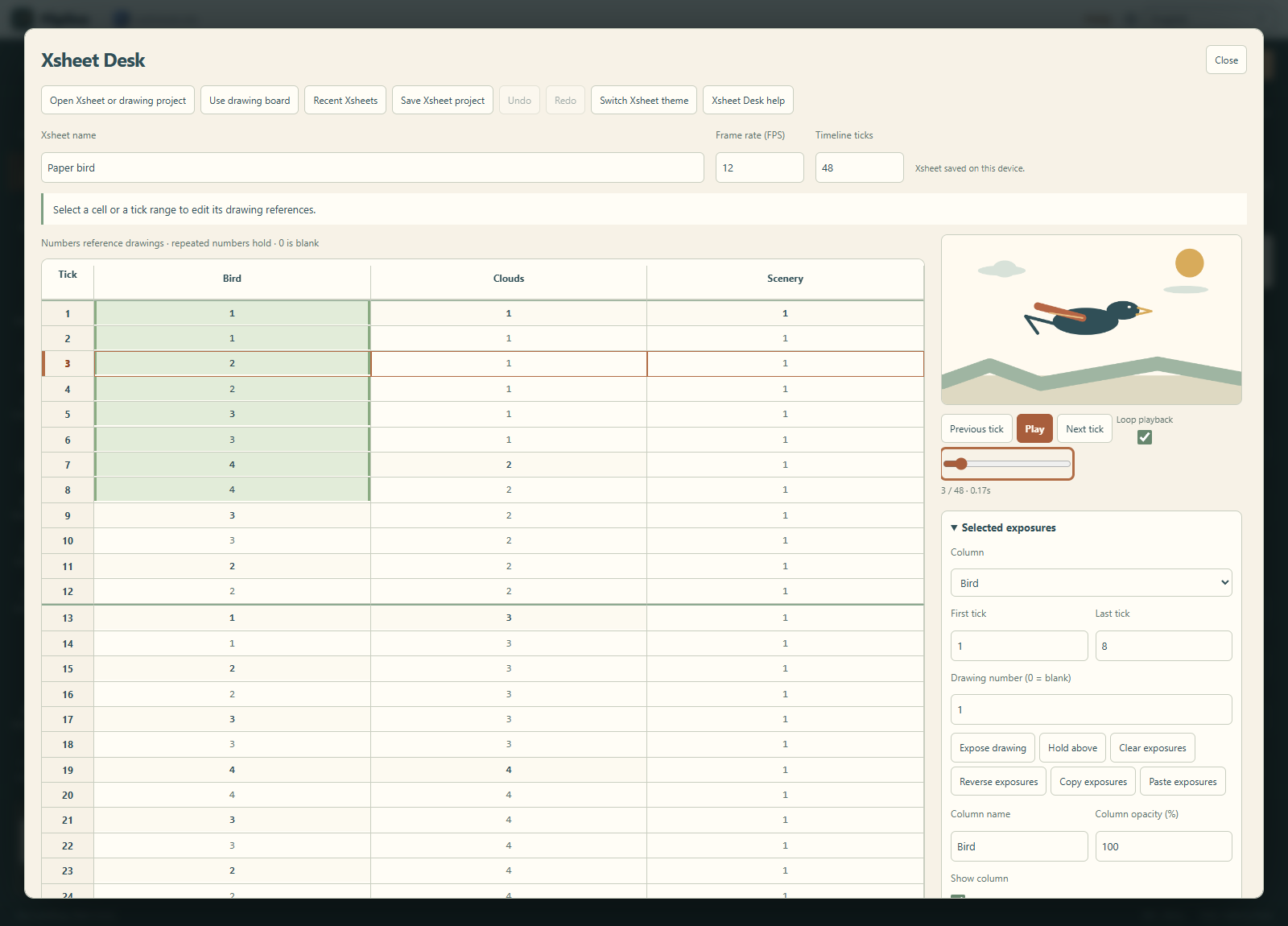
Read the sheet
Every row is one timeline tick. Each column corresponds to one source layer. Numbers point to drawings in that layer's library; 0 is blank. Repeated numbers hold the same drawing. The preview combines each column's reference at the current tick, including source layer opacity, visibility and paper.
Source holds expand into ticks when converting a drawing project. Identical source cels are reused even if their mark IDs differ. Empty source cels become blank references. The original drawing library remains embedded in the Xsheet project.
Click a cell to select it. Shift-click within the same column to extend the range, or enter First tick and Last tick. Arrow keys move the active cell; Shift+Up/Down extends the range. The tick slider and Play/Pause inspect the composite without changing timing.
With a cell focused, Delete clears the selected range and Ctrl+C, Ctrl+X and Ctrl+V copy, cut and paste exposures. Space plays the preview when no form field or button has focus, and ? opens help. In Xsheet Desk help you can switch these single-key shortcuts off.
Edit references
Choose a Drawing number and Expose drawing to fill the selected range. Use 0 for a blank. Hold above fills the range from the preceding cell. Reverse exposures, Clear exposures, Copy exposures and Paste exposures operate within the selected column. Pasting starts at the first selected tick and must fit within the sheet.
In Sequence and timeline, choose the first and last drawing, ticks per drawing and a mode:
- Once, then hold plays the sequence and holds its final drawing for the remaining selected ticks.
- Loop drawings repeats it.
- Ping-pong drawings plays forward then backward, without duplicating endpoints.
The sequence fills exactly the selected range. A partial final exposure is possible when the range ends mid-step. Insert ticks before range and Delete selected ticks affect every column. Changing Timeline ticks pads with blanks or removes the tail; Undo restores it.
You can rename a column and adjust its visibility and opacity. The Drawing library shows source drawings for the selected column; choosing a thumbnail sets the drawing number, then Expose drawing places it.
Use exposure lines
Paste exposure lines accepts one line per source column:
Bird | 1x2 2x2 3x2 4x2
Clouds | 1x4 2x4
Scenery | 1x8
NxH exposes drawing N for H ticks. Zero is blank. A dot repeats the preceding reference, so .x3 holds it for three more ticks. Shorter columns pad with blanks. The text planner uses the same grammar.
Save and export
Save .flipline-xsheet.json to retain source artwork and references. Five recent sheets autosave independently in this browser; keep a downloaded copy. Undo holds up to 30 states within a 24 MB string budget. Drawing-board Google Drive saving does not include Xsheet projects.
Export timing and animation offers a source-size preview PNG, animated GIF, timing CSV/SVG and an editable drawing project. CSV contains one row per tick and protects formula-prefixed column names. SVG is a timing table, not the artwork; long column names are shortened visually.
GIF export uses at most 48 composite segments and a longest side up to 640 pixels. Long still segments split at ten seconds. Cumulative 10 ms boundaries reduce timing drift. GIF has an adaptive palette and binary alpha; PNG retains full transparency.
Continue on drawing board compiles the sheet into independent cels, splitting holds after ten ticks. It must fit 24 drawing frames and the normal artwork complexity limits. A long or complex sheet remains editable here; conversion reports the limit instead of shortening it. Compilation preserves the visual animation, while the Xsheet file preserves reference-based timing.
The Xsheet schema documents the format. Shared #xsheet=<base64url-json> links are limited to 1 MB; use project files for larger documents.
This workflow is inspired by OpenToonz's reference-based cells. It does not import OpenToonz scenes, audio, camera animation or node effects.
Ready to try it?