Tutorial 7 of 11
Draw with pressure, pigment and textured paper
Beginner 7 min
Choose a brush, test its character, mix colors and keep an editable drawing in Flipline.
Open a sketchbook
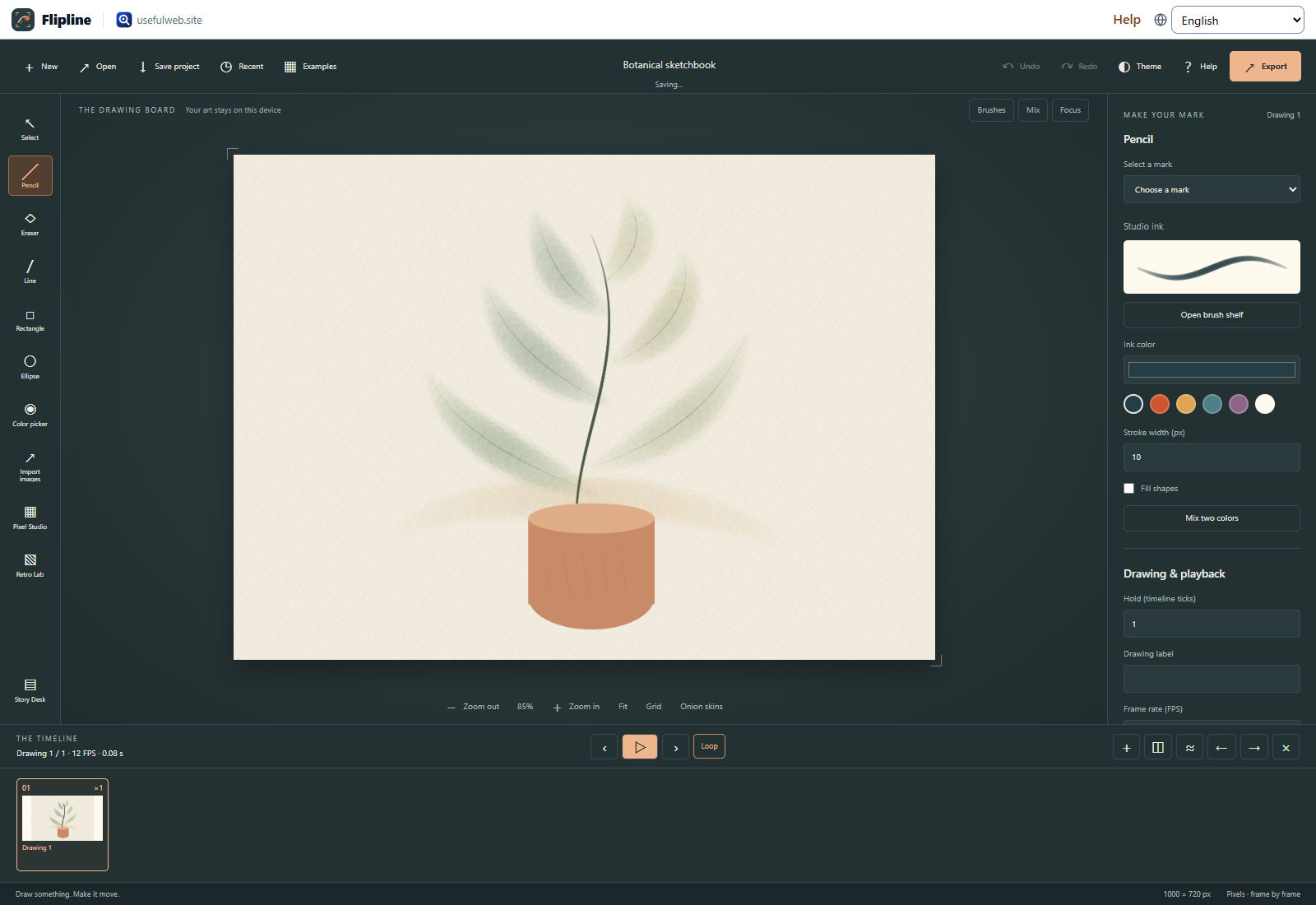
Open Botanical sketchbook or Brush field notes from Examples or Flipline's landing page. Both are ordinary, editable Flipline drawings. You can also create a blank canvas.
Find a brush
Choose Brushes above the canvas. The shelf offers Graphite pencil, Studio ink, Chisel marker, Pigment wash and Soft airbrush, each with a stroke preview. Try a preset on the test paper before drawing on your project.
Adjust width, pigment opacity, flow, stamp spacing and texture. Opacity and flow multiply the pigment in each stamp; overlapping stamps build color. Texture is most apparent in the pencil and wash. The test preview uses changing pressure so you can see the brush's range. Draw your own stroke to test your device.
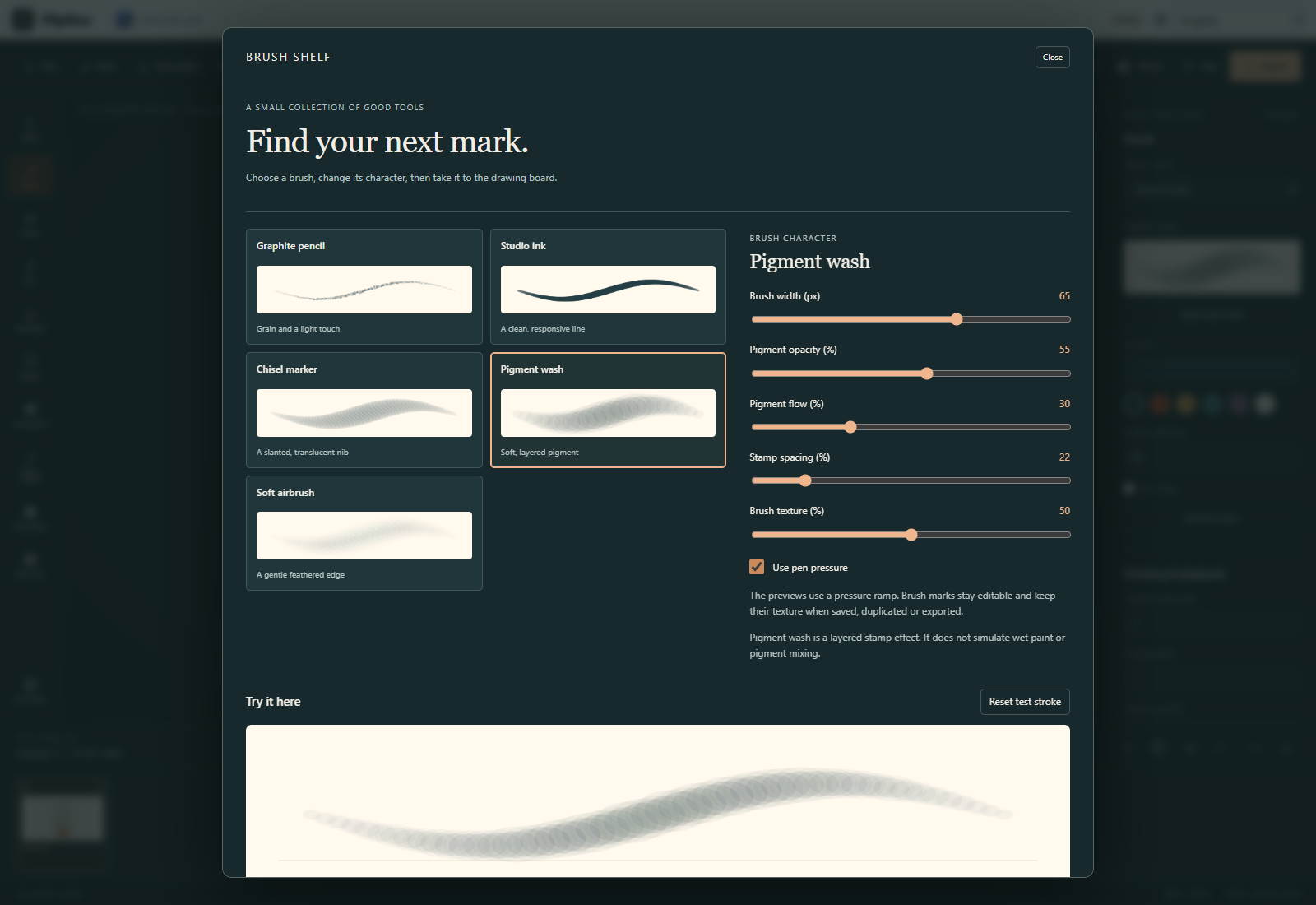
The top Brushes button changes the brush for future strokes. To restyle an existing pencil mark, select it and choose Open brush shelf in the inspector. Its geometry, recorded pressure and texture seed stay with the mark. Ordinary older strokes remain supported; choosing a brush in their inspector gives them the new brush style.
Use pressure
A pen that reports pressure changes stroke width and pigment while you draw. Mouse and touch use full pressure. Turn Use pen pressure off for a constant response.
Pressure samples are saved with the stroke. Save/reopen, copy/paste, duplicate drawings, transforms, onion skins and exports keep the brush settings. Inbetweens resample and interpolate pressure between paired marks. Stroke width stays fixed when scaling a mark, as in the existing transform tools.
The brushes are authored stamp effects. Pigment wash does not simulate wet paint, drying or physical pigment mixing. There is no tilt shading. Up to 1024 stamp centers are generated per stroke, so very long or rapidly changing strokes may have wider spacing. The project budget is 240000 dabs.
Mix a color
Choose Mix above the canvas for a ramp between two HEX colors. Set 2–24 colors and choose Linear light or sRGB channels. Linear light decodes sRGB before interpolation and usually creates brighter middle colors. This is additive color interpolation, not mixing physical paint.
Select a swatch to use it for future strokes. Mix two colors in a selected mark's inspector can recolor that mark. Save the ramp as HEX or GIMP GPL. These formats also open in Pixel Studio, Retro Lab and Lumina's Palette Studio. The separate Two-Color Ramp Mixer tool additionally exports JASC-PAL and CSS.
Choose paper and focus
In Canvas settings, choose Plain paper, Fine grain or Linen weave and set the paper color. The texture stays at native canvas scale in previews and exports. Transparent PNG/GIF exports omit the paper color and texture.
Focus hides the rail, inspector and timeline. Brush, Mix and Focus controls remain above the canvas. Press H to toggle focus or Esc to leave it; letter shortcuts respect the setting in Help.
Keep your work
Save a normal .flipline.json project to preserve every editable stroke. Browser autosave and recent projects continue to work as before, along with the main drawing document's optional Google Drive adapter.
Save brush recipe downloads .flipline-brush.json, containing the brush settings, seed and width. Open a recipe in the shelf or with the main Open button. Its schema is available here. Save a project as well to keep the actual drawing.
The Pressure Brush Stroke Renderer and Two-Color Ramp Mixer use the same engines through HTML forms, JSON API and MCP. The renderer supplies a standalone vector SVG, a brush recipe and an editable Flipline drawing.
Ready to try it?