Tutorial 6 of 11
Plan a story in Story Desk
Beginner 8 min
Sketch a shot sequence, add dialogue and timing, then export a contact sheet, shot list or animatic.
Open Story Desk from Flipline's drawing rail. Choose Story examples and try A small delivery, or start with New storyboard. Drawing-board projects remain separate. Story help in the footer summarizes the tools, keyboard shortcuts and exports.
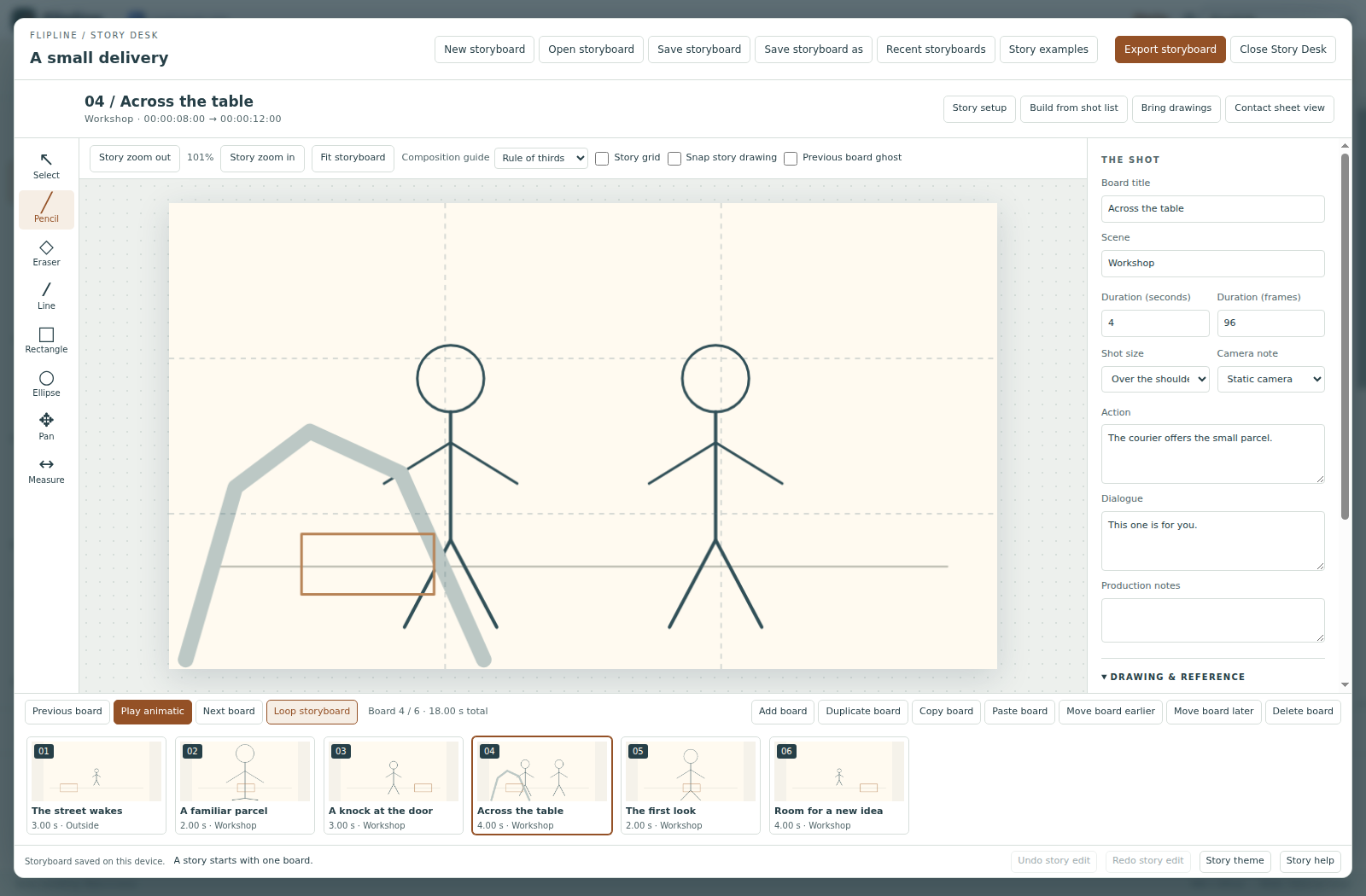
1. Plan the sequence
Choose Build from shot list. Enter one board per line:
An arrival | 3 | A figure pauses at the door. | | Outside | wide | static A question | 2 | A glance into the room. | Is anyone here? | Workshop | close | static
The first four fields are Title | Seconds | Action | Dialogue. Scene, shot size and camera are optional. Shot sizes are wide, medium, close, detail and over-shoulder; camera labels are static, pan-left, pan-right, tilt-up, tilt-down, push-in, pull-out and handheld. Pipes separate fields, so leave them out of dialogue. Keep Add staging sketches on for simple editable figures, then choose Create storyboard to make a new story.
Below the canvas, Add board inserts a blank board after the current one and Duplicate board copies it. Copy board and Paste board repeat a board elsewhere. Reorder with Move board earlier and Move board later, or drag a thumbnail onto another position. Undo story edit and Redo story edit in the footer step through your changes.
2. Draw the shot
The tool rail offers Select, Pencil, Eraser, Line, Rectangle, Ellipse, Pan and Measure. Click a mark with Select to move it, or pick it under Select a mark in the properties panel. While the canvas has focus, arrow keys nudge the selected mark (Shift moves ten pixels) and Delete removes it. Stage a shot adds one to three editable stick figures using the current shot size and placement.
Import reference loads a PNG, JPEG or WebP image and lets you adjust Reference opacity (%) or hide it with Show reference. Ink remains separate: erasing or choosing Clear ink preserves the reference. Lock board artwork protects the drawing from new marks, moving, clearing and board deletion; notes and timing stay editable.
The Composition guide (rule of thirds, center cross or 80% safe area), Story grid and Previous board ghost help compare framing. Snap story drawing snaps to 32 canvas pixels. The Measure tool reports pixel distances. These view aids stay out of exports.
3. Write and time it
Set the Board title, Scene, Shot size and Camera note. Add Action, Dialogue and Production notes. On phones and narrow windows, open Board properties in the footer.
Enter a duration in seconds or frames. Seconds round to whole frames at the chosen FPS. Story setup changes the aspect ratio, frame rate and paper color; changing FPS preserves seconds with rounding. Camera moves are planning labels, not animated paths.
Press Space on the canvas or Play animatic to preview the sequence with its exact timing; Loop storyboard repeats it. Contact sheet view shows six boards per page. A story can hold 48 boards and last up to ten minutes.
Single-letter shortcuts (N adds a board, B, E and V pick Pencil, Eraser and Select) can be switched off in Story help. They then only work while the storyboard canvas has focus.
4. Share the plan
Save storyboard downloads the editable .flipline-story.json file, and Save storyboard as asks for a new name first. Open storyboard reopens it; Flipline's main Open button recognizes these files too. Autosave keeps eight stories under Recent storyboards on this device. Download a backup before clearing browser storage.
Export storyboard offers the current board as PNG or SVG, the current contact sheet as SVG, a PNG sequence ZIP, a silent animatic GIF, a video with session audio, a shot list CSV, dialogue SRT and shot data JSON. Print contact sheets and Print blank worksheets open the browser print dialog, where you can also save a PDF. Choose whether to burn short shot captions into PNG and GIF. Long text remains complete in the project and text exports.
GIF timing rounds each board to 10 ms with a 20 ms minimum. CSV and SRT follow the frame timeline; SRT omits boards without dialogue. Timecodes use non-drop-frame notation at integer FPS.
Bring drawings copies Flipline drawings into a new story as reference images and preserves their holds as frame durations. Keep the original project for editable drawing layers.
For automation, use Storyboard Shot Builder and Storyboard Timing & Shot List. Shot data JSON removes artwork for a compact timing-tool input. Story Desk does not import Storyboarder or Fountain files and has no animated camera.
Use Choose animatic audio to preview a browser-playable local audio file with the storyboard, and use Scrub animatic to review timing. The start offset places the beginning of the audio on the storyboard timeline; a negative offset skips into the audio. Audio is session-only and is cleared when you open another project. GIF and the project file do not contain audio.
With a playable session audio file loaded, Export storyboard → Download audio timing CSV records each board’s start and exclusive end plus the overlapping timeline and audio positions. Empty overlap fields mean the board lies outside the clip. The CSV contains timing markers, not the sound itself.
Download animatic video with audio combines the boards and selected audio into a WebM (or MP4 if supported by your browser). It applies the same start offset, including negative offsets, and trims the sound at the storyboard end. Exports are limited to 60 seconds; the source audio must be at most 10 minutes and 50 MB. Recording takes place in real time, so keep the tab visible until the download is ready. Browser codec support varies. Choose the audio again when reopening a story.
Ready to try it?