Tutorial 19 of 19
Add sparks, snow and smoke with particles
Intermediate 6 min
Set up a seeded particle emitter, preview it over your drawing, add it as an editable layer with one drawing per frame and export a transparent PNG sequence.
Embers above a campfire, falling snow or a burst of confetti need dozens of small dots that move a little in every drawing. The Particles dialog simulates them for you and puts the result on your drawing board as ordinary, editable marks.
Open the Particles dialog
Choose More in the top bar, then Particles. The preview on the left plays the effect over your drawing's paper and its other visible layers. If your system asks for reduced motion, the preview starts paused; use Play preview or drag Preview frame to step through it.
Start with a preset under Start from a preset: Rising embers, Gentle snow, Confetti burst, Soft smoke, Water fountain, Swirling sparks or Magnetic pull. Every preset is a complete set of settings you can change afterwards.
Shape the emitter
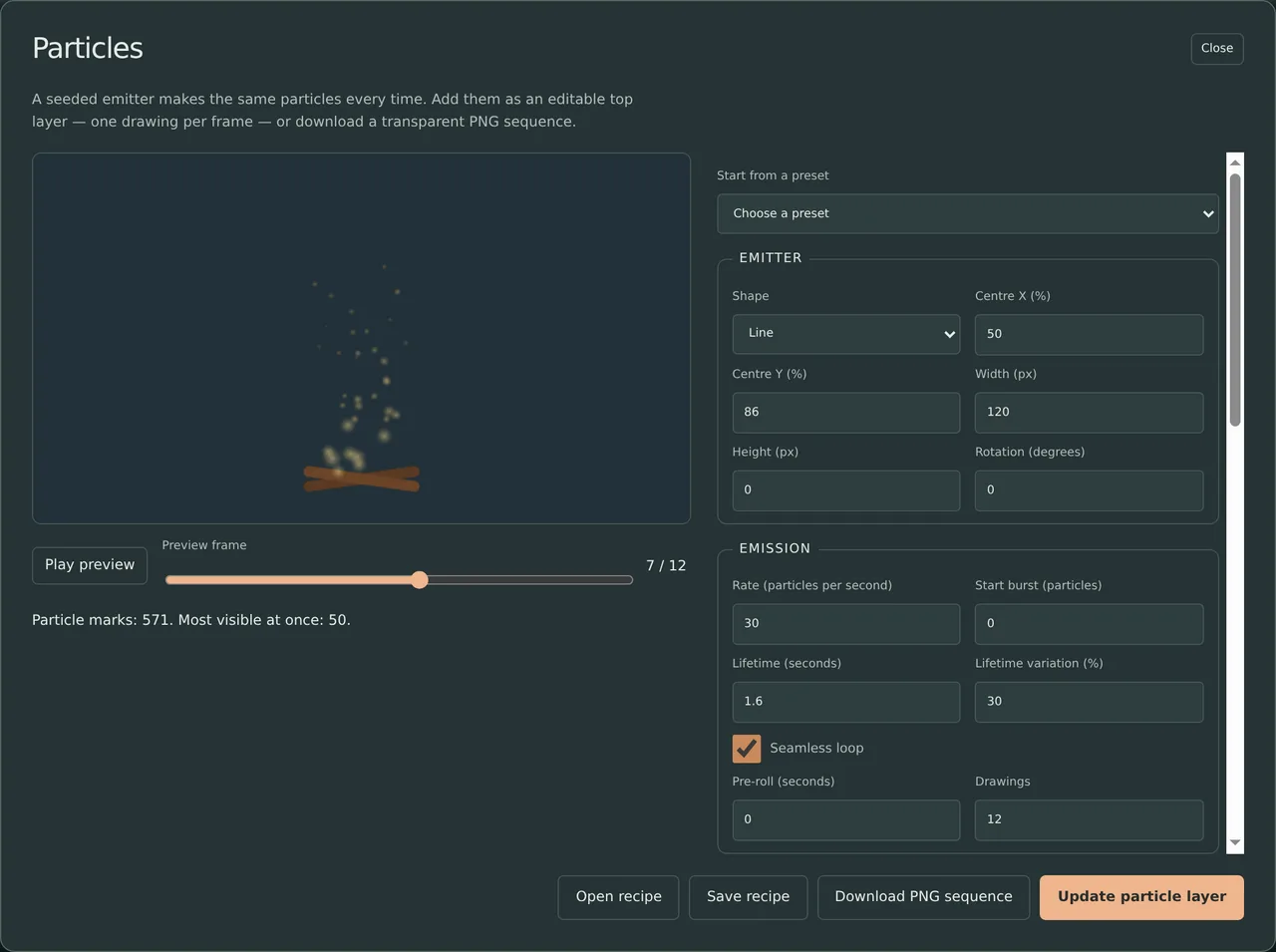
- Emitter: a point, line, rectangle, filled ellipse, ring outline or a stroke you selected. Centre X and Y are percentages of the canvas; width, height and rotation are in pixels and degrees.
- Emission: a steady rate per second, a start burst, the lifetime with a random variation, and Drawings — how many drawings the layer fills (1–24).
- Motion: direction (90 is up), spread, speed, gravity (positive pulls down), wind (positive pushes right) and drag, which slows particles over time. Throw away from the shape centre makes rings and ellipses explode outward.
- Look over life: dots or soft glow, start and end size, color and opacity. Each has an easing such as
ease-in,ease-outorcubic-bezier(…), the same curves as Motion Desk.
Forces bend the paths. Turbulence swirls particles along a seeded flow: its size sets how large the swirls are and change how quickly they drift (a seamless loop repeats them). Add attractor places a point that pulls particles in, or pushes them away with a negative strength; the radius is how far it reaches. Edit the numbers, or click the preview to move the nearest attractor there. With forces, each particle's path is a short simulation, so very busy emitters may ask you to lower the rate.
To emit along your own line, select a pen stroke or a line on the board first, then open Particles and choose Along a stroke as the shape. Particles start anywhere along the stroke; Throw away from the shape centre throws them sideways from it, like sparks from a fuse. The stroke is copied into the emitter, so later edits to the stroke do not move it — select it again and choose Use the selected stroke again.
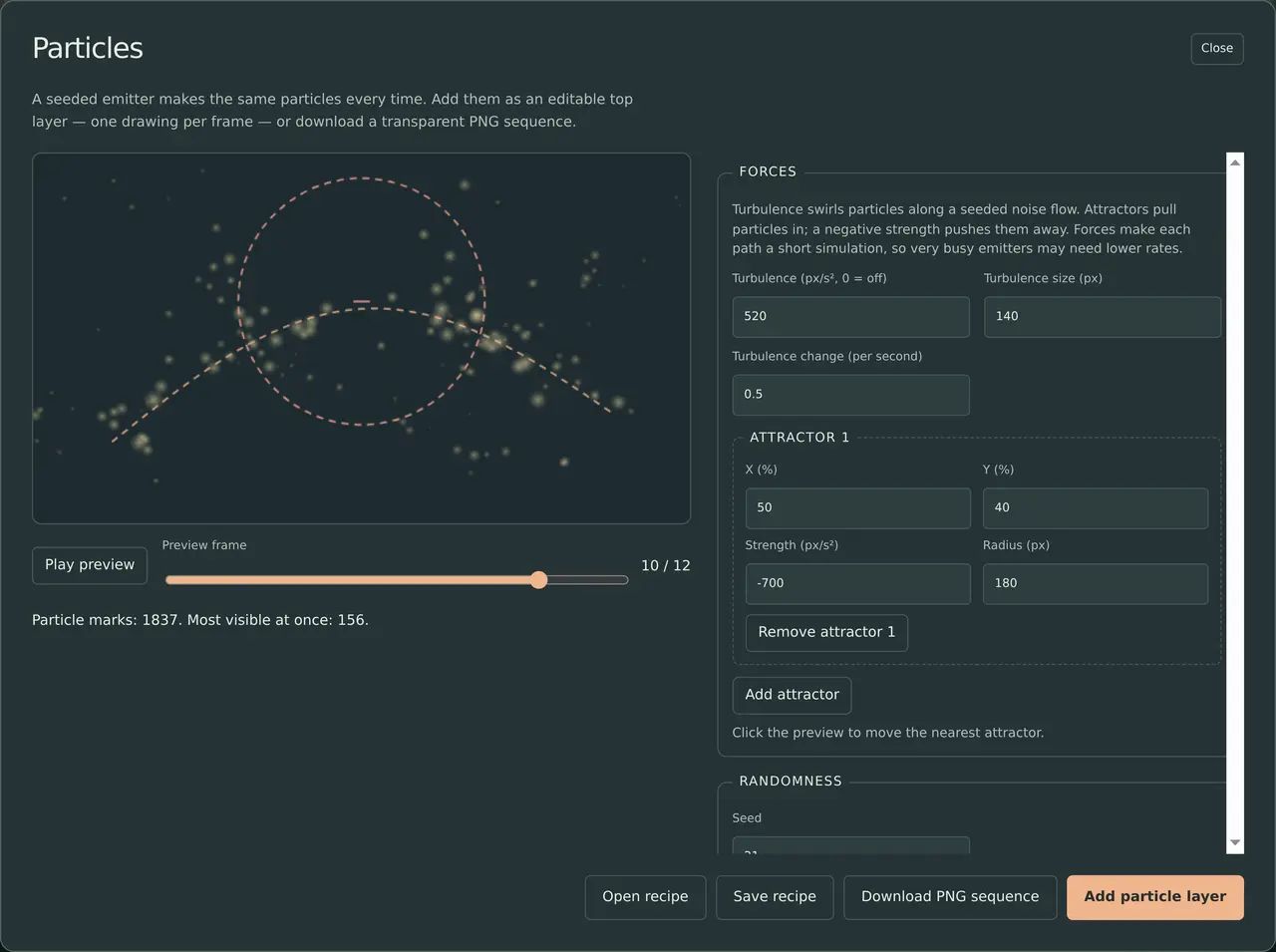
Seamless loop makes the last drawing flow into the first, which suits snow, smoke and fire. It ignores the start burst, so turn it off for one-off explosions and use Pre-roll if the first drawing should already be busy. The Seed decides the randomness: the same seed always gives the same particles, and New seed shuffles them.
Add the layer to your drawing
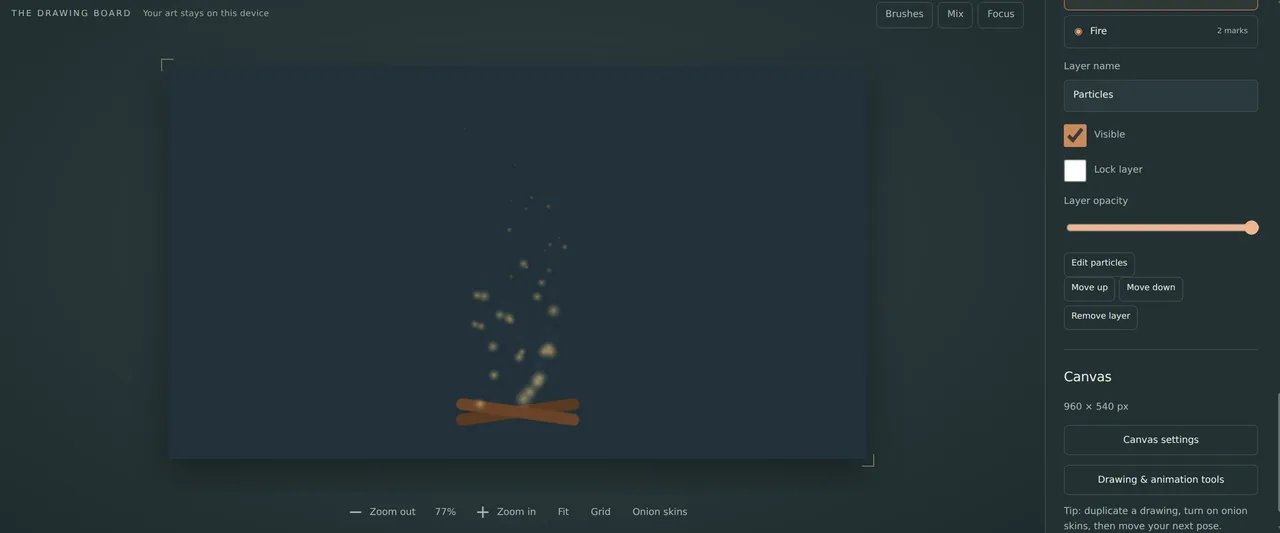
Choose Add particle layer. Flipline adds a top layer called Particles with one drawing per frame and adds blank drawings if your animation is shorter. Each particle is a normal brush mark: select, move, recolor or delete it like any other stroke. A drawing can hold at most four layers, 500 particles per drawing and 2000 marks in total; if the effect is too dense, the dialog says so before anything changes.
The whole change is one step: Undo removes the layer again. The emitter settings are saved in the project, so the layer panel shows Edit particles. It reopens the dialog with your settings, and Update particle layer replaces the old particles in place.
Export and reuse
Download PNG sequence renders transparent PNG frames plus a particles.json file with size, frame rate and the emitter settings. Rendering runs in the background, so the dialog stays usable. Composite the frames over video or a game scene, or unzip them and use Import frame sequence in Pixel Studio.
Save recipe downloads a .flipline-particles.json file; Open recipe loads it again. The recipe schema is available here.
The Particle Effect Frame Generator tool uses the same engine through a web form, the JSON API and MCP. It produces byte-identical PNG sequences, allows up to 240 frames and returns an editable drawing for up to 24 drawings.
Limits
Particles are a 2-D look, not a physics simulation: they never collide, bounce or react to your drawing, and attractors do not absorb them. Particles whose centre leaves the canvas are not drawn. Projects with particle settings are saved as drawing project version 2, which older Flipline versions refuse to open instead of losing the settings.
Ready to try it?